Thursday, July 2, 2015
gdb
1. Start gdb on an executable file:$ gdb abc // file "abc" is an executable file or a core file.
OR
$ gdb
(gdb) file abc // open executable file "abc"
2. Configuration of gdb: (gdb) set linesize 30 // Set number of lines displayed by list command.
(gdb) set prompt (gdb)$ // set gdb prompt instead of default (gdb)
(gdb) show commands // Show last 10 commands in history
(gdb) show commands 30 // Show last 10 commands around line 30 in history
(gdb) show commands + // Show next 10 commands.
3. Use shell commands: Only cd, pwd and make can be used directly in gdb, rest of commands should
be prefixed with shell.
(gdb) cd aFolder
(gdb) pwd
(gdb) make
(gdb) shell ls // Run ls command
4. GDB commands for debugging purpose. a) Run:
(gdb) run // Run program
(gdb) run arg1 arg2 // Run program with arguments
b) Set Breakpoint/Stop Sign:
(gdb) b location // Set a stop sign at aLocation.
(gdb) watch theVar // watch is a special stop sign. Stops when theVar's value is changing.
(gdb) rwatch theVar // Stops when theVar is read from.
(gdb) awatch theVar // Stops when theVar is read from or written to.
(gdb) advance aLocation // Continue to this temporary aLocation.
c) Examine variables:
(gdb) p theVar // Display value of theVar.
(gdb) disp theVar // Display value of theVar EACH TIME program STOPs.
(gdb) info disp // For instance, find display# for theVar is 3.
(gdb) undisp 3 // Remove display of theVar whose display# is 3.
(gdb) set variable theVar = 100 // Change theValue's value to 100.
(gdb) set (theVar = 100) // Change theValue's value to 100.
d) Stop and Go.
<<STOPS>>
(gdb) when arriaved at a stop sign // Pause the execution of program.
(gdb) b 17 // Set a stop sign at line 17.
(gdb) i b // List all the stop signs.
(gdb) CTRL-C // Pause the execution of program.
// If followed by "bt" command, you will know where you are.
<<GOES>>
(gdb) next // Move on to the next statement treating a function as one statement.
(gdb) step // Move on to the next statement treating a function as multiple statements.
(gdb) finish // Exit a function body but NOT resume the execution.
(gdb) continue // Resume the execution of program at the current place.
(gdb) jump aLocation // Resume execution at aLocation. (similar to GOTO)
e) Stack (function stack)
(gdb) bt // Print all the frames in stack.
// Also tells which function you are in (where you are.).
(gdb) up // Go to one-level outer function.
(gdb) down // Go to one-level inner function.
(gdb) frame 3 // Go to frame 3
(gdb) info args // Display args for the current frame/function.
(gdb) info locals // Display local variables for the current frame/function.
(gdb) info reg // Display register
(gdb) info all-reg // Display all registers
(gdb) info reg general // Display general register
(gdb) info reg float // Display float register
(gdb) info reg // Display local variables for the current frame/function.

Thursday, June 25, 2015
wget usage
wget usage:
---------------------
1 Simple Usage
---------------------
# Say you want to download a URL. Just type:
$ wget http://fly.srk.fer.hr/
# In this case, Wget will try getting the file until it either gets the whole of it, or
# exceeds the default number of retries (this being 20).
# It is easy to change the number of tries to 45, to insure that the whole file will
# arrive safely:
$ wget --tries=45 http://fly.srk.fer.hr/jpg/flyweb.jpg
# Now let’s leave Wget to work in the background, and write its progress
# to log file log. It is tiring to type ‘--tries’, so we shall use ‘-t’.
$ wget -t 45 -o log http://fly.srk.fer.hr/jpg/flyweb.jpg &
# To unlimit the number of retries
$ wget -t inf -o log http://fly.srk.fer.hr/jpg/flyweb.jpg &
# The usage of FTP is as simple. Wget will take care of login and password.
$ wget ftp://gnjilux.srk.fer.hr/welcome.msg
# If you specify a directory, Wget will retrieve the directory listing, parse it
# and convert it to HTML.
$ wget ftp://ftp.gnu.org/pub/gnu/ # create index.html
---------------------
2 Advanced Usage
---------------------
# You have a file that contains the URLs you want to download? Use the ‘-i’ switch:
$ wget -i file # read ULR from a file
$ wget -i - # read ULR from standard input.
# Create a five levels deep mirror image of the GNU web site
$ wget -r http://www.gnu.org/ -o gnulog
# The same as the above, but convert the links in the downloaded files to point to local files,
$ wget --convert-links -r http://www.gnu.org/ -o gnulog
# Retrieve only one HTML page, but make sure that all the elements
# needed for the page to be displayed,
$ wget -p --convert-links http://www.server.com/dir/page.html
# The HTML page will be saved to www.server.com/dir/page.html, and
# the images, stylesheets, etc., somewhere under www.server.com/,
#depending on where they were on the remote server.
# The same as the above, but without the www.server.com/ directory.
$ wget -p --convert-links -nH -nd -Pdownload \
http://www.server.com/dir/page.html
# Retrieve the index.html of ‘www.lycos.com’, showing the original server headers:
$ wget -S http://www.lycos.com/
# Save the server headers with the file, perhaps for post-processing.
$ wget --save-headers http://www.lycos.com/
$ more index.html
# Retrieve the first two levels of ‘wuarchive.wustl.edu’, saving them to /tmp.
$ wget -r -l2 -P/tmp ftp://wuarchive.wustl.edu/
# You want to download all the GIFs from a directory on an HTTP server
# if HTTP retrieval does not support globbing
# More verbose, but the effect is the same.
# ‘-r -l1’ means to retrieve recursively, with maximum depth of 1.
# ‘--no-parent’ means that references to the parent directory are ignored
# ‘-A.gif’ means to download only the GIF files. ‘-A "*.gif"’ would have worked too.
$ wget -r -l1 --no-parent -A.gif http://www.server.com/dir/
# Suppose you were in the middle of downloading, when Wget was interrupted.
# Now you do not want to clobber the files already present. It would be:
$ wget -nc -r http://www.gnu.org/
# If you want to encode your own username and password to HTTP or FTP,
# use the appropriate URL syntax (see URL Format).
$ wget ftp://hniksic:mypassword@unix.server.com/.emacs
# Note, however, that this usage is not advisable on multi-user systems
# because it reveals your password to anyone
# who looks at the output of ps. You would like the output documents to
# go to standard output instead of to files?
# "-O -" log to standard output
$ wget -O - http://jagor.srce.hr/ http://www.srce.hr/
# You can also combine the two options and make pipelines to retrieve the
# documents from remote hotlists:
$ wget -O - http://cool.list.com/ | wget --force-html -i -
-------------------------
3 Very Advanced Usage
-------------------------
# If you wish Wget to keep a mirror of a page (or FTP subdirectories),
# use ‘--mirror’ (‘-m’),
# which is the shorthand for ‘-r -l inf -N’. You can put Wget in the crontab
# file asking it to recheck a site each Sunday:
$ crontab 0 0 * * 0 wget --mirror http://www.gnu.org/ -o /home/me/weeklog
# In addition to the above, you want the links to be converted for local viewing.
# But, after having read this manual, you know that link conversion doesn’t
# play well with timestamping,
# so you also want Wget to back up the original HTML files before the conversion.
# Wget invocation would look like this:
$ wget --mirror --convert-links --backup-converted \
http://www.gnu.org/ -o /home/me/weeklog
# But you’ve also noticed that local viewing doesn’t work all that well
# when HTML files are saved under
# extensions other than ‘.html’, perhaps because they were served as index.cgi.
# So you’d like Wget to rename
# all the files served with content-type ‘text/html’ or ‘application/xhtml+xml’
# to name.html.
$ wget --mirror --convert-links --backup-converted \
--html-extension -o /home/me/weeklog \
http://www.gnu.org/
# Or, with less typing:
$ wget -m -k -K -E http://www.gnu.org/ -o /home/me/weeklog
wget man pages is here: http://linux.die.net/man/1/wget
Two useful options:
-nv
--no-verbose
Turn off verbose without being completely quiet (use -q for that), which means that error messages and basic information still get printed.
--spider
When invoked with this option, Wget will behave as a Web spider, which means that it will not download the pages, just check that they are there. For example, you can use Wget to check your bookmarks:
$ wget -nv --spider --force-html -i bookmarks.html
# check multiple files on server at one time without downloading files.
$ wget -nv --spider http://abc.com/f1.gif http://abc.com/f2.gif \
http://abc.com/f3.gif
Eg:
[dxu@nco-lw-dxu mag_web_test]$ wget -nv --spider http://magpara.ncep.noaa.gov/data//gfs/20150624/06/gfs_alaska_336_925_temp_ht.gif http://magpara.ncep.noaa.gov/data//gfs/20150624/06/gfs_alaska_348_925_temp_ht.gif http://magpara.ncep.noaa.gov/data//gfs/20150624/06/gfs_alaska_360_925_temp_ht.gif
2015-06-25 16:40:11 URL: http://magpara.ncep.noaa.gov/data//gfs/20150624/06/gfs_alaska_336_925_temp_ht.gif 200 OK
2015-06-25 16:40:11 URL: http://magpara.ncep.noaa.gov/data//gfs/20150624/06/gfs_alaska_348_925_temp_ht.gif 200 OK
2015-06-25 16:40:11 URL: http://magpara.ncep.noaa.gov/data//gfs/20150624/06/gfs_alaska_360_925_temp_ht.gif 200 OK
---------------------
1 Simple Usage
---------------------
# Say you want to download a URL. Just type:
$ wget http://fly.srk.fer.hr/
# In this case, Wget will try getting the file until it either gets the whole of it, or
# exceeds the default number of retries (this being 20).
# It is easy to change the number of tries to 45, to insure that the whole file will
# arrive safely:
$ wget --tries=45 http://fly.srk.fer.hr/jpg/flyweb.jpg
# Now let’s leave Wget to work in the background, and write its progress
# to log file log. It is tiring to type ‘--tries’, so we shall use ‘-t’.
$ wget -t 45 -o log http://fly.srk.fer.hr/jpg/flyweb.jpg &
# To unlimit the number of retries
$ wget -t inf -o log http://fly.srk.fer.hr/jpg/flyweb.jpg &
# The usage of FTP is as simple. Wget will take care of login and password.
$ wget ftp://gnjilux.srk.fer.hr/welcome.msg
# If you specify a directory, Wget will retrieve the directory listing, parse it
# and convert it to HTML.
$ wget ftp://ftp.gnu.org/pub/gnu/ # create index.html
---------------------
2 Advanced Usage
---------------------
# You have a file that contains the URLs you want to download? Use the ‘-i’ switch:
$ wget -i file # read ULR from a file
$ wget -i - # read ULR from standard input.
# Create a five levels deep mirror image of the GNU web site
$ wget -r http://www.gnu.org/ -o gnulog
# The same as the above, but convert the links in the downloaded files to point to local files,
$ wget --convert-links -r http://www.gnu.org/ -o gnulog
# Retrieve only one HTML page, but make sure that all the elements
# needed for the page to be displayed,
$ wget -p --convert-links http://www.server.com/dir/page.html
# The HTML page will be saved to www.server.com/dir/page.html, and
# the images, stylesheets, etc., somewhere under www.server.com/,
#depending on where they were on the remote server.
# The same as the above, but without the www.server.com/ directory.
$ wget -p --convert-links -nH -nd -Pdownload \
http://www.server.com/dir/page.html
# Retrieve the index.html of ‘www.lycos.com’, showing the original server headers:
$ wget -S http://www.lycos.com/
# Save the server headers with the file, perhaps for post-processing.
$ wget --save-headers http://www.lycos.com/
$ more index.html
# Retrieve the first two levels of ‘wuarchive.wustl.edu’, saving them to /tmp.
$ wget -r -l2 -P/tmp ftp://wuarchive.wustl.edu/
# You want to download all the GIFs from a directory on an HTTP server
# if HTTP retrieval does not support globbing
# More verbose, but the effect is the same.
# ‘-r -l1’ means to retrieve recursively, with maximum depth of 1.
# ‘--no-parent’ means that references to the parent directory are ignored
# ‘-A.gif’ means to download only the GIF files. ‘-A "*.gif"’ would have worked too.
$ wget -r -l1 --no-parent -A.gif http://www.server.com/dir/
# Suppose you were in the middle of downloading, when Wget was interrupted.
# Now you do not want to clobber the files already present. It would be:
$ wget -nc -r http://www.gnu.org/
# If you want to encode your own username and password to HTTP or FTP,
# use the appropriate URL syntax (see URL Format).
$ wget ftp://hniksic:mypassword@unix.server.com/.emacs
# Note, however, that this usage is not advisable on multi-user systems
# because it reveals your password to anyone
# who looks at the output of ps. You would like the output documents to
# go to standard output instead of to files?
# "-O -" log to standard output
$ wget -O - http://jagor.srce.hr/ http://www.srce.hr/
# You can also combine the two options and make pipelines to retrieve the
# documents from remote hotlists:
$ wget -O - http://cool.list.com/ | wget --force-html -i -
-------------------------
3 Very Advanced Usage
-------------------------
# If you wish Wget to keep a mirror of a page (or FTP subdirectories),
# use ‘--mirror’ (‘-m’),
# which is the shorthand for ‘-r -l inf -N’. You can put Wget in the crontab
# file asking it to recheck a site each Sunday:
$ crontab 0 0 * * 0 wget --mirror http://www.gnu.org/ -o /home/me/weeklog
# In addition to the above, you want the links to be converted for local viewing.
# But, after having read this manual, you know that link conversion doesn’t
# play well with timestamping,
# so you also want Wget to back up the original HTML files before the conversion.
# Wget invocation would look like this:
$ wget --mirror --convert-links --backup-converted \
http://www.gnu.org/ -o /home/me/weeklog
# But you’ve also noticed that local viewing doesn’t work all that well
# when HTML files are saved under
# extensions other than ‘.html’, perhaps because they were served as index.cgi.
# So you’d like Wget to rename
# all the files served with content-type ‘text/html’ or ‘application/xhtml+xml’
# to name.html.
$ wget --mirror --convert-links --backup-converted \
--html-extension -o /home/me/weeklog \
http://www.gnu.org/
# Or, with less typing:
$ wget -m -k -K -E http://www.gnu.org/ -o /home/me/weeklog
wget man pages is here: http://linux.die.net/man/1/wget
Two useful options:
-nv
--no-verbose
Turn off verbose without being completely quiet (use -q for that), which means that error messages and basic information still get printed.
--spider
When invoked with this option, Wget will behave as a Web spider, which means that it will not download the pages, just check that they are there. For example, you can use Wget to check your bookmarks:
$ wget -nv --spider --force-html -i bookmarks.html
# check multiple files on server at one time without downloading files.
$ wget -nv --spider http://abc.com/f1.gif http://abc.com/f2.gif \
http://abc.com/f3.gif
Eg:
[dxu@nco-lw-dxu mag_web_test]$ wget -nv --spider http://magpara.ncep.noaa.gov/data//gfs/20150624/06/gfs_alaska_336_925_temp_ht.gif http://magpara.ncep.noaa.gov/data//gfs/20150624/06/gfs_alaska_348_925_temp_ht.gif http://magpara.ncep.noaa.gov/data//gfs/20150624/06/gfs_alaska_360_925_temp_ht.gif
2015-06-25 16:40:11 URL: http://magpara.ncep.noaa.gov/data//gfs/20150624/06/gfs_alaska_336_925_temp_ht.gif 200 OK
2015-06-25 16:40:11 URL: http://magpara.ncep.noaa.gov/data//gfs/20150624/06/gfs_alaska_348_925_temp_ht.gif 200 OK
2015-06-25 16:40:11 URL: http://magpara.ncep.noaa.gov/data//gfs/20150624/06/gfs_alaska_360_925_temp_ht.gif 200 OK
Thursday, June 11, 2015






Monday, June 1, 2015
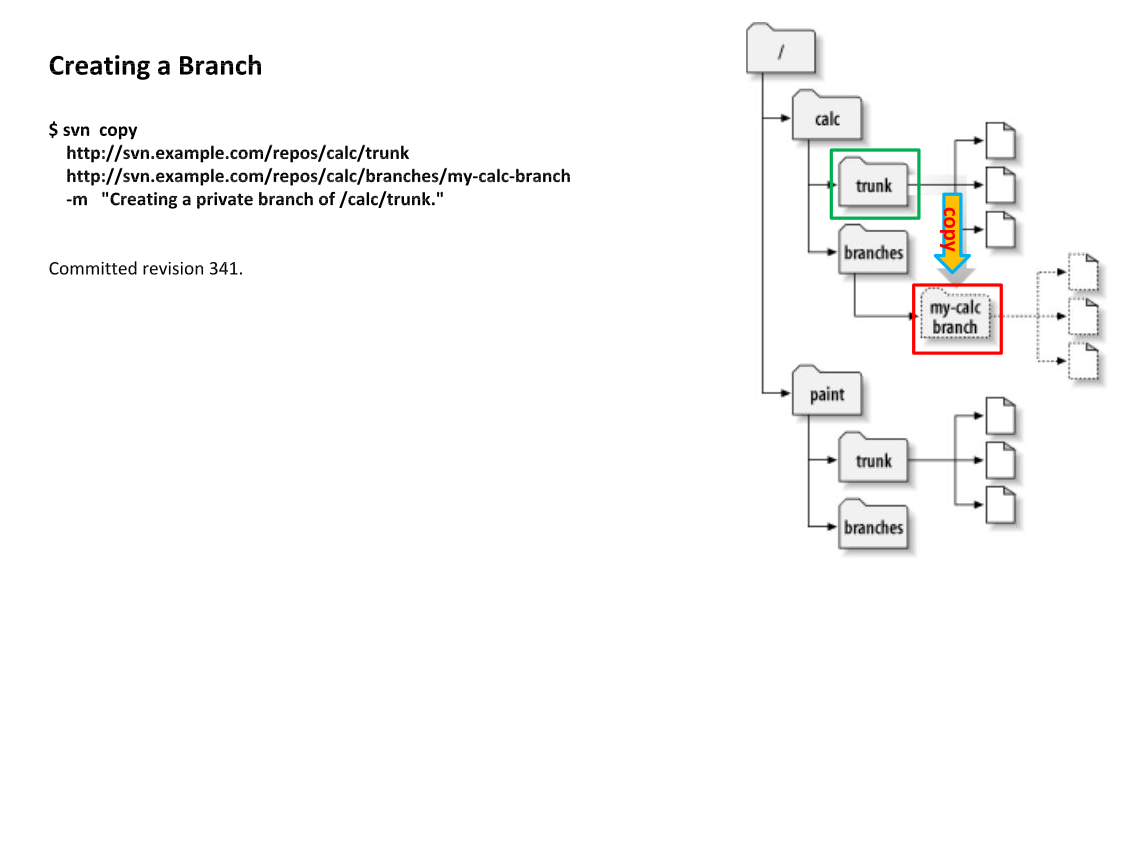
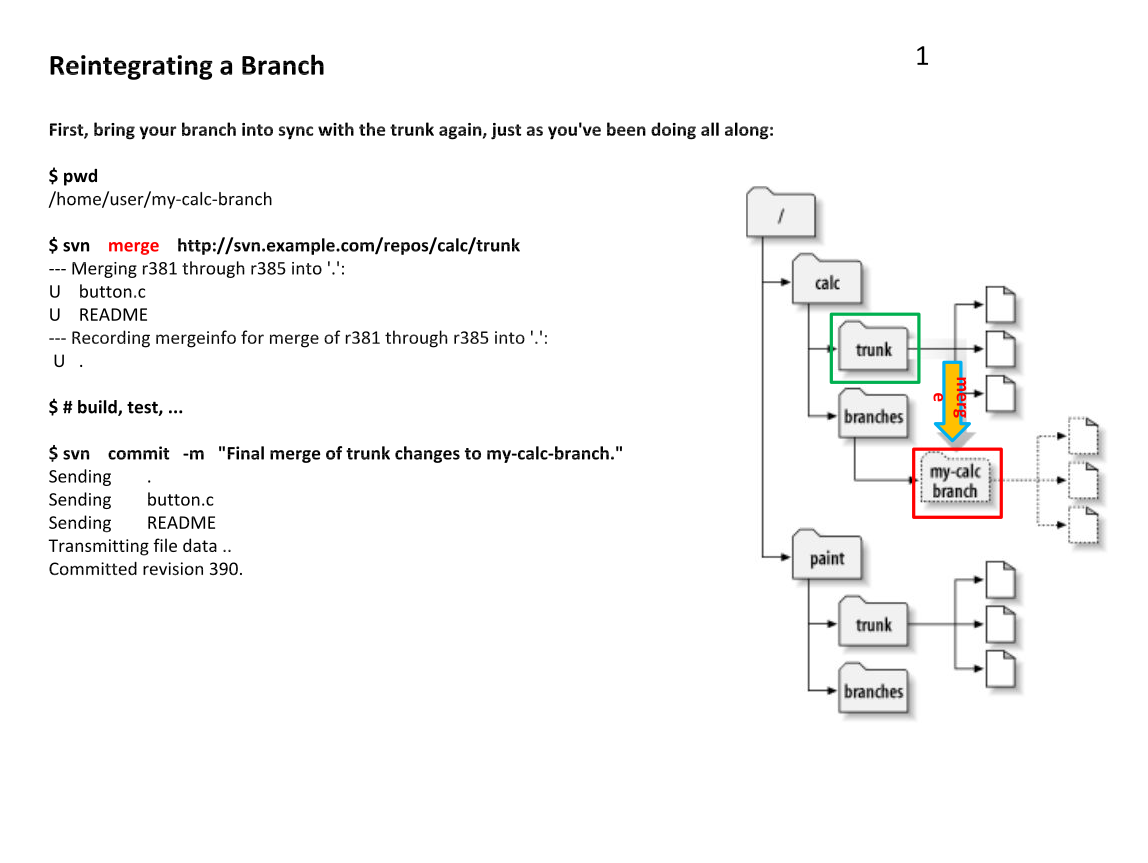
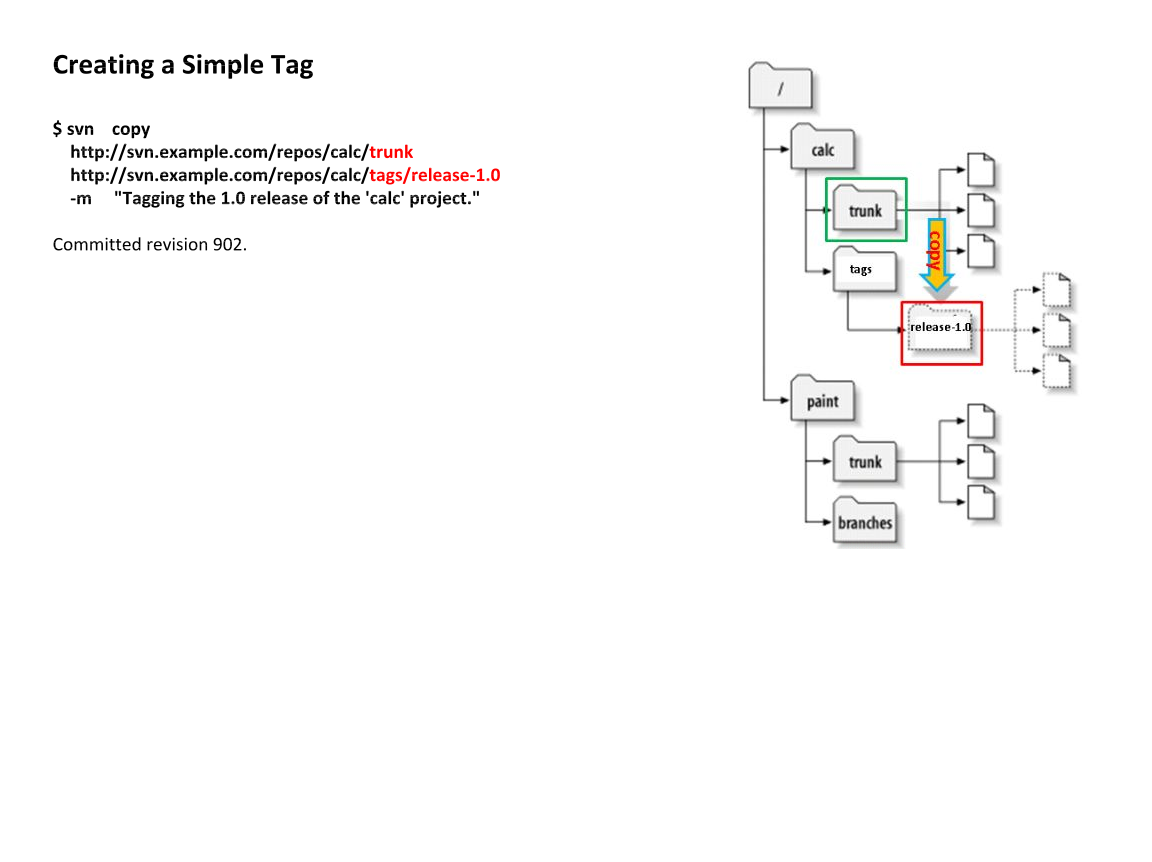
SVN : check out a specific version a file
There are occasions where you want to check out a specific version of a file.
I use an example below to show how to do this:
1. Get log info
$ svn log rtma.sh > log_record
$ cat log_record
------------------------------------------------------------------------
r267 | dxu | 2015-03-30 21:23:27 +0000 (Mon, 30 Mar 2015) | 1 line
------------------------------------------------------------------------
r63 | jator | 2014-05-07 18:38:30 +0000 (Wed, 07 May 2014) | 1 line
------------------------------------------------------------------------
r61 | jator | 2014-04-30 19:22:16 +0000 (Wed, 30 Apr 2014) | 1 line
------------------------------------------------------------------------
r54 | jator | 2014-04-14 17:22:15 +0000 (Mon, 14 Apr 2014) | 1 line
2. Check out specific versions
$ svn cat -r 267 rtma.sh > abc267 # check out latest version
$ svn cat -r 63 rtma.sh > abc63 # check out a previous version
$ svn cat -r 61 rtma.sh > abc61 # check out a previous version
$ svn cat -r 54 rtma.sh > abc54 # check out a previous version
$ sstatus
$ diff abc267 abc63
$ diff abc267 abc61
$ diff abc267 abc54
# Revert to a previous version
# way 1
$ mv abc54 rtma.sh
$ svn commit -m"balah..." rtma.sh
# way 2
$ svn update -r 54 rtma.sh
I use an example below to show how to do this:
1. Get log info
$ svn log rtma.sh > log_record
$ cat log_record
------------------------------------------------------------------------
r267 | dxu | 2015-03-30 21:23:27 +0000 (Mon, 30 Mar 2015) | 1 line
------------------------------------------------------------------------
r63 | jator | 2014-05-07 18:38:30 +0000 (Wed, 07 May 2014) | 1 line
------------------------------------------------------------------------
r61 | jator | 2014-04-30 19:22:16 +0000 (Wed, 30 Apr 2014) | 1 line
------------------------------------------------------------------------
r54 | jator | 2014-04-14 17:22:15 +0000 (Mon, 14 Apr 2014) | 1 line
2. Check out specific versions
$ svn cat -r 267 rtma.sh > abc267 # check out latest version
$ svn cat -r 63 rtma.sh > abc63 # check out a previous version
$ svn cat -r 61 rtma.sh > abc61 # check out a previous version
$ svn cat -r 54 rtma.sh > abc54 # check out a previous version
$ sstatus
$ diff abc267 abc63
$ diff abc267 abc61
$ diff abc267 abc54
# Revert to a previous version
# way 1
$ mv abc54 rtma.sh
$ svn commit -m"balah..." rtma.sh
# way 2
$ svn update -r 54 rtma.sh
Monday, May 11, 2015
Friday, May 8, 2015
how GFCI works?


That outlet is called a ground-fault circuit interrupter (GFCI). It's there to protect people from electrical shock, so it is completely different from a fuse.
The question on appliance plugs talks about fuses. The idea behind a fuse is to protect a house from an electrical fire. If the hot wire were to accidentally touch the neutral wire for some reason (say, because a mouse chews through the insulation, or someone drives a nail through the wire while hanging a picture, or the vacuum cleaner sucks up an outlet cord and cuts it), an incredible amount of current will flow through the circuit and start heating it up like one of the coils in a toaster. The fuse heats up faster than the wire and burns out before the wire can start a fire.
A GFCI is much more subtle. When you look at a normal 120-volt outlet in the United States, there are two vertical slots and then a round hole centered below them.
The left slot is slightly larger than the right.
The left slot is called "neutral,"
the right slot is called "hot" and
the hole below them is called "ground."
If an appliance is working properly, all electricity that the appliance uses will flow from hot to neutral.
A GFCI monitors the amount of current flowing from hot to neutral. If there is any imbalance, it trips the circuit. It is able to sense a mismatch as small as 4 or 5 milliamps, and it can react as quickly as one-thirtieth of a second.
So let's say you are outside with your power drill and it is raining. You are standing on the ground, and since the drill is wet there is a path from the hot wire inside the drill through you to ground (see How Power Distribution Grids Work for details on grounding). If electricity flows from hot to ground through you, it could be fatal. The GFCI can sense the current flowing through you because not all of the current is flowing from hot to neutral as it expects -- some of it is flowing through you to ground. As soon as the GFCI senses that, it trips the circuit and cuts off the electricity.
Relationship of Neutral and Ground :


Subscribe to:
Posts (Atom)